Editing Account Details

Editing Account Details
Hello Bloomers! 👋
This guide will go over how to change your account details in your client area and minecraft panel, allowing you to change your name, email, and payment details.
Client Area
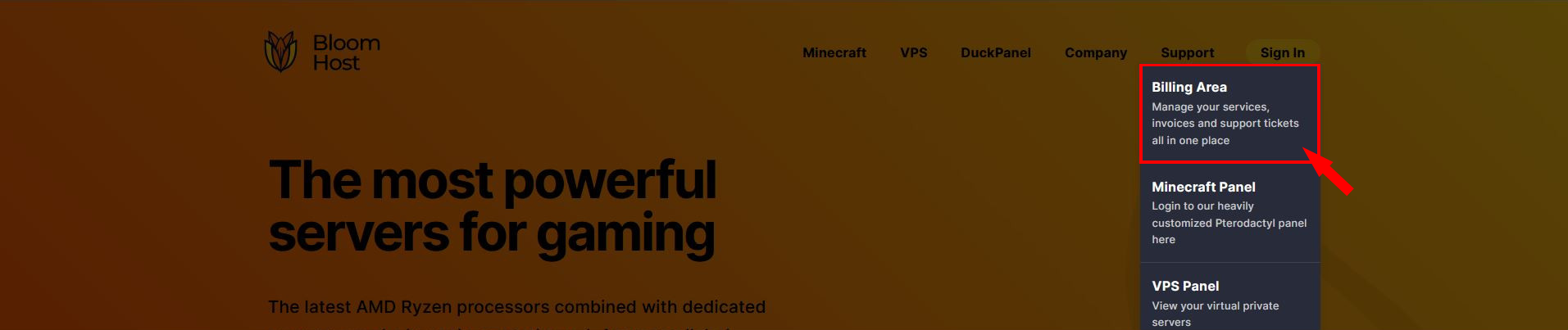
Head on over to the billing area by going to the header, hovering over support, then clicking Billing Login. Log in to your account or register an account from there.
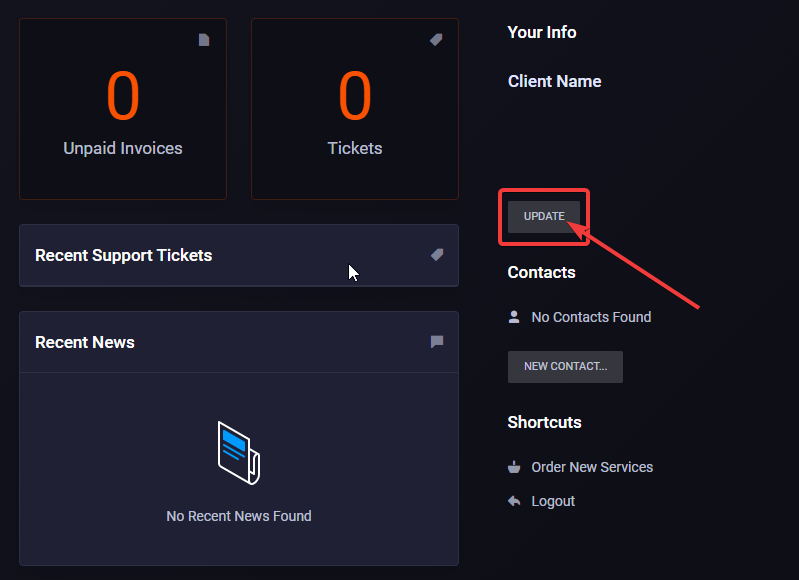
Now, click Update under Your Info.
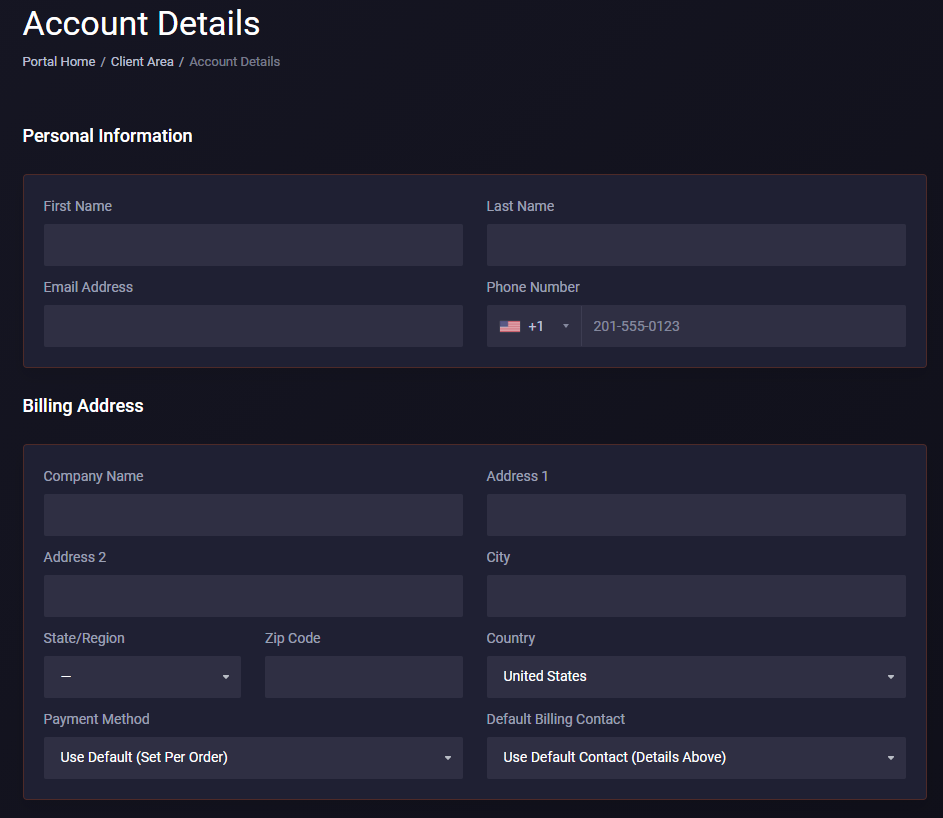
This area lets you edit any details about your account from payment methods to emails sent to changing your password. Once done, click Save Changes for all your changes to take effect.
DuckPanel
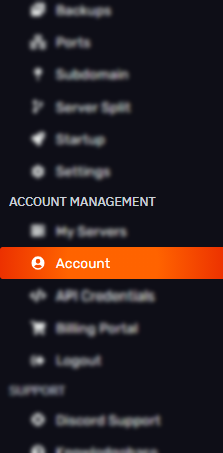
To start, head over to your sidebar and click the My Account tab.
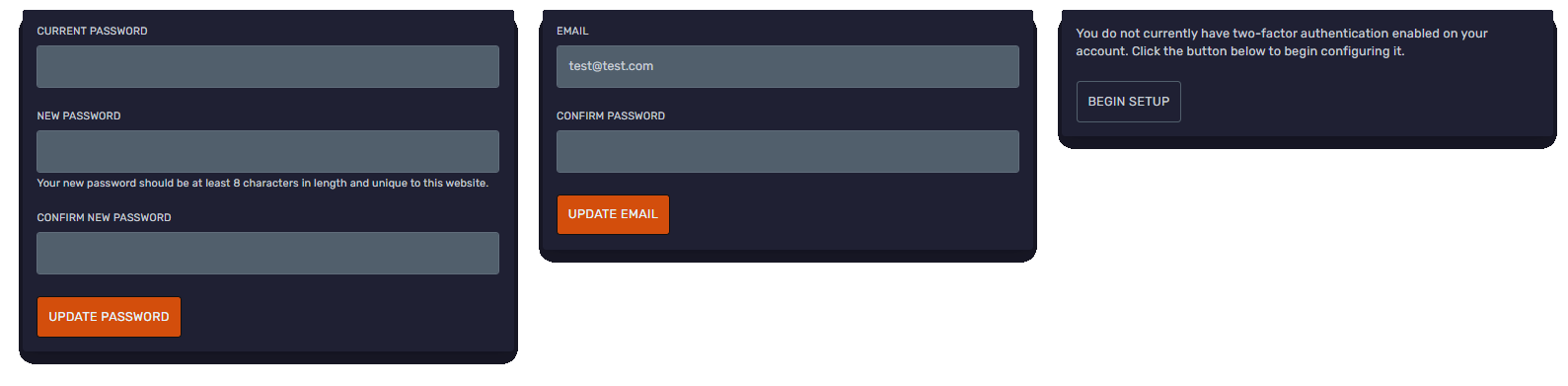
Simply edit any details that you need. Once you have completed a section, click the Update button below it to apply the changes needed.
Discord Linking
Here you can also set up your Discord account.
When your Discord and DuckPanel accounts are linked, our staff will see all the servers you own or have access to when you open a ticket. Please note that any significant changes to your server will still require opening a billing ticket as confirmation.
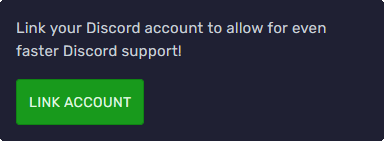
Simply click 'Link Account' which will redirect to Discord's authorization site.
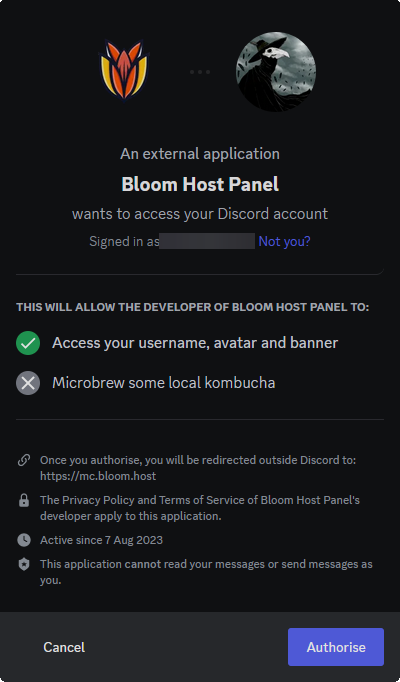
Make sure you are logged in with the correct account and click 'Authorise'.
You will be redirected back to the DuckPanel where it will show your currently linked account.

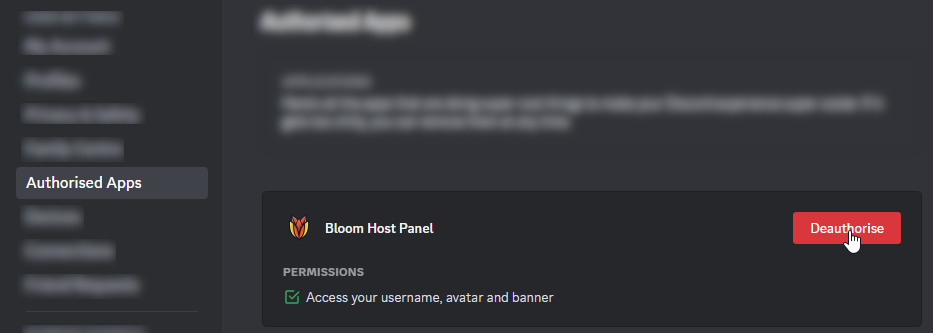
If you ever need to unlink your account, simply click 'Unlink Account' in the panel, or 'Deauthorise' under 'Authorised
Apps' in your Discord settings.